- Go to
Site Actions, Site Settings
- Click
Site Content Types
- Click
Create
- Give
the new content type a name such as "Description"
- Set
the parent content type group as Folder Content Types
- Set
the parent content type to Folder
- Add
the new content type to a Group. I put it back in the "Folder Content
Types" group
- Click
OK
- Scroll
down to the columns section and click Add from new site column
- Name
the column and set all the usual column options
- Repeat
for any additional columns
- Click
OK
- Go to
your document library
- Click
Settings and Library Settings, or in 2010 click the Library ribbon tab and then
click Library Settings
- Click
Advanced and set Allow management of content types to Yes and click OK (this
may already selected)
- Scroll
down to Content Types and click Add from existing site content types and add
your new folder content type
- Go to
your document library and click the New drop down, or the New button in the 2010
Document ribbon, and add your new folder!
- Go to
the View drop down and click Modify this view and add your new folder meta data
columns (you will probably want to move them to just after the Name column)
Showing posts with label Columns. Show all posts
Showing posts with label Columns. Show all posts
Thursday, January 31, 2013
Adding a Description Column for a folder under Document Library

Thursday, June 30, 2011
Add image to custom list with calculated / conditional column.
This is the method, I followed to achieve – add image to custom list with calculated / conditional column.
Following is the result list (check Status Icon column)


After adding above formula list will look like

http://blog.pathtosharepoint.com/2008/09/01/using-calculated-columns-to-write-html
to write HTML in to calculated column and convert HTML tag to IMAGE
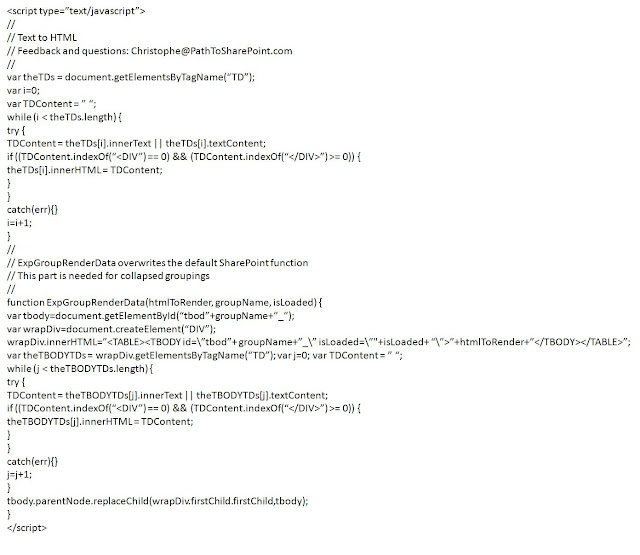
Make sure to add this script in CEWP after list.
Feel free to reach me in case of any doubts.
Following is the result list (check Status Icon column)
- Diff is a calculated column based on Col1 and Col2
- It compares values of Col1 and Col2 , if Col2 > Col1
Diff gives us “1″ and if Col1 < Col2 then it gives us “0″
- My AIM is to get “Green” signal when Diff = 1 and “Red” when Diff = 0
- Here I have used KPI icon but we can use any image.
- Download following images on your desktop

- Navigate to your site > Picture Libraries
- Select Shared Pictures > Upload > Browse
- Select icon image file and upload it to the Share Pictures library
- Click the icon image displayed in the Share Pictures library.
- Click the Preview image displayed on the next screen to view the image itself.
- Copy the Image URL
- Navigate to the List you want to have the icons displayed in.
- List Settings > Create column
- Provide Following details for the column
- Column name – Status Icon
- Column Type – Calculated (calculation based on other columns)
- The data type – Single line of text
- Add it to default view
- This is the conditional “IF” formula I have used

After adding above formula list will look like
- And finally to convert HTML DIV tag to image we have to add following JavaScript which will call the image from the Shared Picture and display it column.
- Add following JavaScript to Content Editor Web Part after List.
http://blog.pathtosharepoint.com/2008/09/01/using-calculated-columns-to-write-html
to write HTML in to calculated column and convert HTML tag to IMAGE
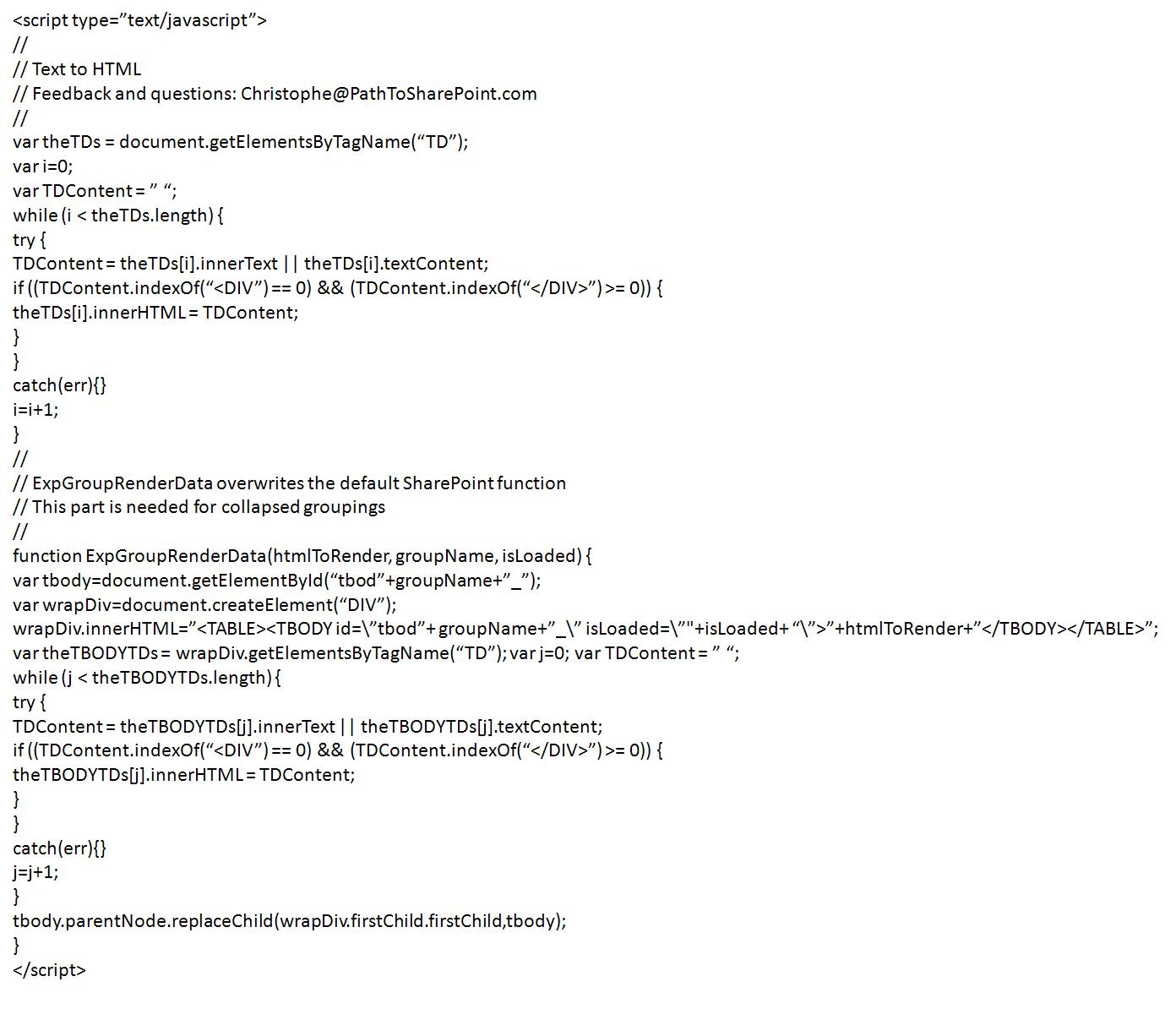
Make sure to add this script in CEWP after list.
Feel free to reach me in case of any doubts.
Wednesday, January 12, 2011
Enable (Enhanced Rich Text ) font format toolbar in Blog site in MOSS 2007
I have recently found issue in which Font toolbar was missing after server migration.
For troubleshooting:
- Check following settings on Blog site
- Go to "Post > List settings"
- Under "Columns" option you will get "Body column" which is "Multiple lines of text"
- Click on Body name, it will show you "Body column's settings"
- Under "Additional column settings" find for "Specify the type of text to allow"
- Right now it must be with "Plain text" so change it to "Enhanced Rich Text" which will give you toolbar back.
"Enhanced Rich Text" option is enabled by default
Subscribe to:
Posts (Atom)
Popular Posts
-
 This is the method, I followed to achieve – add image to custom list with calculated / conditional column. Following is the result list...
 -
 if you want to do a User profile import in SharePoint 2010.. you should have the 'User Profile Synchronization Service' started....
 -
SharePoint provides you “Export to Spreadsheet” feature across almost all list, allowing you to export your list content to Excel. But no...
-
Note: A LOT of these questions are specific to SharePoint 2007, and won't have applicability for SharePoint 2003! 1) What are the...
-
A very common & known issue while migrating IE versions. There is couple of steps and checking should be done to get this resolved. ...
-
I found this really great article that talks in depth as well in an easy language about the new options of under look and feel of 2013. h...
-
The April 2015 Cumulative Update for SharePoint 2010 has been released. SharePoint Foundation: https://support.microsoft.com/en-us/kb...
-
We love virtual labs they are free, non hassle and disposable ways to work around SharePoint deployment SharePoint 2010 virtual lab can be...
-
The April 2015 Cumulative Update for SharePoint 2013 has been released. SharePoint Foundation: http://support.microsoft.com/kb/29652...
-
June 2014 Cumulative Update for SharePoint 2013 has been released. SharePoint Foundation - KB2881063 http - //support.microsoft.com/kb...